
Smart Home Integration for Permanent Holiday Lights
Table of Contents
- What You'll Need Before You Start
- Step 1: Choose Your Smart Home Integration Path
- Step 2: Set Up Permanent Holiday Lights with Alexa
- Step 3: Set Up Permanent Holiday Lights with Google Home
- Step 4: Create Smart Lighting Schedules for Outdoor Lights
- Step 5: Build Smart Home Lighting Scenes for Holidays
- Common Mistakes to Avoid with Smart Home Integration
- Frequently Asked Questions
Last Updated: October 12, 2026
What You'll Need Before You Start
Smart home integration for permanent holiday lights starts with three things: a permanent LED lighting system already installed on your home, a stable 2.4 GHz Wi-Fi signal that reaches your controller, and a smart home platform (Amazon Alexa, Google Home, or a local hub like Home Assistant) to tie everything together. The process is simpler than most people expect once the hardware is in place.
This guide breaks down the full integration path, from picking the right control method to building scenes that switch your roofline from everyday warm white to full holiday color with one voice command.
Before you touch an app, confirm you have:
- A permanent LED system with a controller that supports Wi-Fi or a smart plug connection
- Your home's Wi-Fi network name and password (2.4 GHz band, not 5 GHz)
- The manufacturer's app installed on your phone
- Your smart home platform app (Alexa, Google Home, or Home Assistant) already set up
- A phone or tablet connected to the same network as your lights
Step 1: Choose Your Smart Home Integration Path
The right integration path depends on how much control you want, how your lights are wired, and which wireless protocol your controller speaks. There are three practical routes: a smart plug for simple on/off and scheduling, a dedicated lighting controller for full color and effects, or a local hub for privacy-focused, cloud-free control. Most permanent LED systems use the second or third route, because a smart plug can't change color, brightness, or effects.
Smart Plug vs. Dedicated Lighting Controller vs. Local Hub
A smart plug works when your lights have a single power source and you only need on/off, timers, and basic scheduling. You plug the light transformer into the smart plug, add the plug to your smart home app, and control power from there.
A dedicated lighting controller, which is what most permanent LED systems use, gives you full access to color, brightness, patterns, and scenes. This is the path to choose if you want your holiday lights to change colors and run effects on command.
A local hub (Home Assistant, Hubitat, or a similar platform) keeps control on your own network instead of routing commands through a manufacturer cloud.
| Control Method | Best For | What You Get | Limitation |
|---|---|---|---|
| Smart plug | Single-color or fixed lights | On/off, timers, basic schedules | No color or effect control |
| Dedicated controller | Full-color permanent LED systems | Color, dimming, effects, scenes | Requires 2.4 GHz Wi-Fi and app setup |
| Local hub | Privacy-focused, advanced users | Local control, no cloud dependency | Steeper setup curve; integration may be community-built |
Protocol and Platform Compatibility Check
The single most useful thing you can do before buying a controller is confirm which wireless protocol it uses, because that determines which platforms it can talk to and how reliable the connection will be.
- Wi-Fi (2.4 GHz): The most common protocol in permanent LED controllers. No hub required, works directly with Alexa and Google Home, but each controller adds a device to your router and range can be an issue for exterior runs.
- Zigbee: Requires a hub or a platform with a Zigbee radio (many Home Assistant setups, some smart speakers). Lower power draw and a mesh network that extends range, but you need the hub.
- Matter: A cross-platform standard backed by the Connectivity Standards Alliance. A Matter-certified controller can be added to Alexa, Google Home, Apple Home, and SmartThings without a brand-specific integration. Support is growing but not universal, so verify the specific controller model is Matter-certified rather than assuming.
- Thread: Often paired with Matter as a low-power mesh transport. Requires a Thread border router (some smart speakers and hubs include one).
- Proprietary 2.4 GHz: Many permanent lighting brands use their own RF or Wi-Fi scheme and expose control only through their own app plus a cloud integration. These work, but they depend on the manufacturer's servers and may not support local control.
Alexa and Google Home are the most widely supported ecosystems. Apple Home support is narrower and usually requires Matter. Home Assistant support varies and often depends on whether the controller uses a documented protocol or a community-built integration.
If you're unsure which platform fits your system, we can confirm compatibility for your specific setup during a walk-through.
Step 2: Set Up Permanent Holiday Lights with Alexa
Pairing permanent holiday lights with Alexa takes about ten minutes once your controller is on the network. Open the Alexa app, go to Devices, tap the plus icon, and choose "Add Device." Select the light category, then pick your controller's brand from the list.
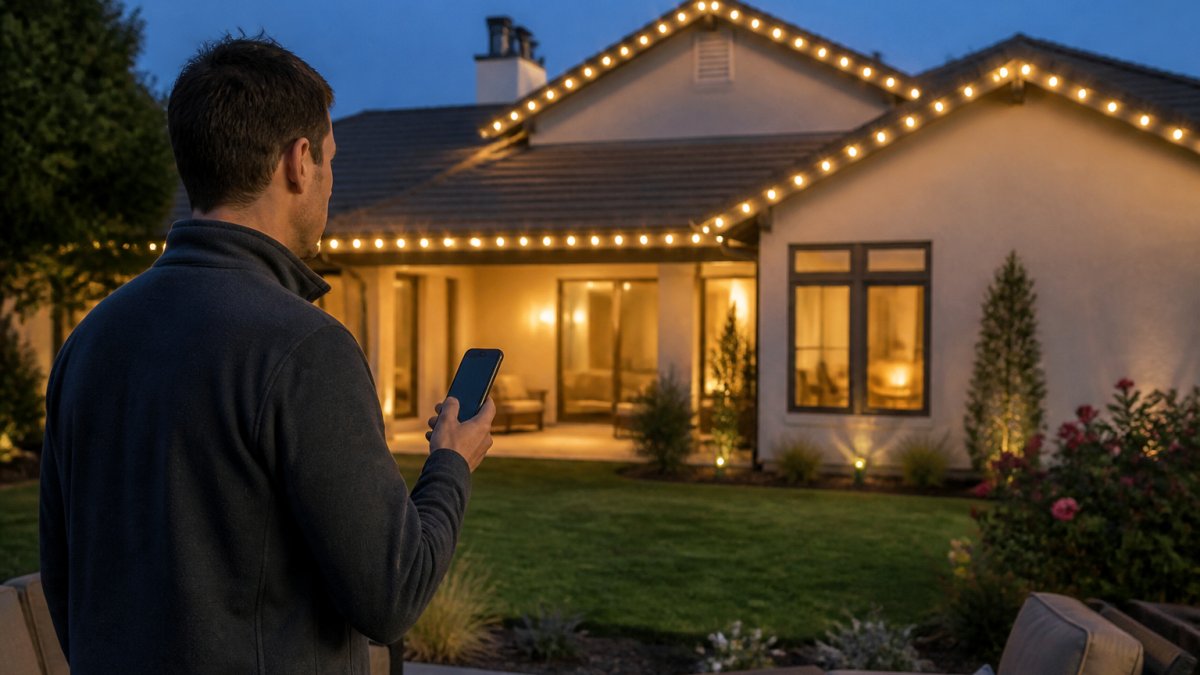
Once paired, name your device something Alexa can recognize easily, like "Roofline Lights" or "Front Holiday Lights." Avoid generic names like "Light 1." After naming, test with a simple command such as "Alexa, turn on Roofline Lights." If the lights respond, you're connected.
Step 3: Set Up Permanent Holiday Lights with Google Home
Google Home setup follows a similar rhythm but uses the Google Home app instead. Tap the plus icon, select "Set up device," then "Works with Google Home." Search for your controller's brand and sign in with your manufacturer account credentials.
If your controller brand doesn't appear in the Works with Google Home list, it may still work through a Matter or Thread bridge. Check the manufacturer's documentation for Matter support, since that standard is increasingly the bridge between permanent lighting controllers and major platforms.
After linking, assign each fixture to a room in the Google Home app. Google uses room assignments for voice commands, so naming your front roofline "Front Yard" lets you say "Hey Google, turn on the Front Yard lights."
Step 4: Create Smart Lighting Schedules for Outdoor Lights
Smart lighting schedules for outdoor lights do two jobs: they make your home look occupied when you're away, and they save energy by running lights only when they matter. In Alexa, open Routines and create a new schedule. Set the trigger to a time or sunset, then set the action to turn on your permanent lights at a specific brightness. Refining these automated sequences becomes even more effective when utilizing smart home lighting kits that integrate seamlessly with existing hub configurations.
A practical baseline schedule looks like this:
- Sunset: Turn on at 40% warm white for everyday curb appeal
- 10:00 PM: Dim to 15% for late evening
- 11:30 PM: Turn off, or switch to a low security glow
- Holiday season: Override with full-color scenes on a separate routine
In Google Home, use the same logic under the Automations tab. Both platforms support sunrise and sunset triggers, which adjust automatically through the year, so you set the schedule once.
Step 5: Build Smart Home Lighting Scenes for Holidays
Smart home lighting scenes for holidays let you switch your entire exterior from everyday warm white to a coordinated holiday display with one command. A scene is a saved combination of settings, color, brightness, and effect, that you trigger by voice, app, or schedule.
Build scenes around the occasions you actually celebrate:
- Christmas: Red and green alternating pattern at 70% brightness
- Halloween: Orange and purple with a slow fade effect
- Fourth of July: Red, white, and blue segments across the roofline
- Everyday: Warm white at 40% for architectural accent lighting
- Game day: Team colors across the front of the house
In Alexa, scenes live inside Routines. In Google Home, they're called "Scenes" directly. Home Assistant users can build scenes with far more granular control, including per-fixture color and animation timing.
For a full rundown of local control options and the trade-offs between cloud and on-device processing, Home Assistant documentation is the most thorough reference for advanced users. For platform-level guidance, the Google Home developer documentation covers supported device types and integration requirements.
Common Mistakes to Avoid with Smart Home Integration
The most common integration problems are predictable, and most of them show up after installation rather than during it. Here's what we see homeowners run into, how to sidestep each one, and what to do when something stops working mid-season.
Setup Mistakes
Using a 5 GHz Wi-Fi network. Permanent lighting controllers almost always require 2.4 GHz.
Naming devices generically. "Light 1" and "Device A" make voice control frustrating. Use descriptive names tied to location and function, like "Roofline Lights" or "Front Holiday Lights."
Skipping the platform compatibility check. Buying a controller before confirming it works with your chosen platform leads to returns and rework. Verify first, install second.
Overloading a single smart plug. If you're using a plug-based setup, confirm the plug's wattage rating exceeds your light transformer's draw. Exceeding it risks tripping the plug or, worse, a safety issue.
Forgetting a manual override. If your Wi-Fi drops, you want a physical switch or app-independent control so your lights aren't stuck on or off. Plan for the failure case.
Troubleshooting After Installation
Wi-Fi range at the roofline. Exterior controllers are often mounted where signal is weakest.
Controller resets. Most controllers have a reset procedure, often a button hold or a sequence in the manufacturer app, that clears network credentials without wiping your saved scenes. Keep the manufacturer's reset instructions handy before you need them.
Firmware updates. Controllers ship with firmware that improves over time, and many integration bugs get patched this way.
Seasonal schedule changes. Sunrise and sunset triggers adjust automatically through the year, but holiday-specific routines don't.
For broader guidance on smart home device compatibility and standards, the Connectivity Standards Alliance maintains the Matter specification that governs cross-platform device support.
If your permanent lighting system needs professional installation before any of this integration work begins, Paramount Outdoor Lighting Group handles the full process, from design through controller setup, so your system is network-ready the day it's installed.
Frequently Asked Questions
How do you connect permanent holiday lights to a smart home system?
Start by checking whether your lights use a dedicated lighting controller or a standard smart plug. Most permanent systems connect through a controller that links to your Wi-Fi network and pairs with an app. From there, you can add the device to Alexa, Google Home, or a hub like Home Assistant. Always confirm the controller supports your chosen platform before mounting anything.
Can permanent holiday lights work with Alexa or Google Home?
Yes, many permanent holiday lights work with Alexa and Google Home, but it depends on the controller. Brands that support these assistants let you use voice commands to turn lights on or off, change colors, and activate scenes. Check the product specifications for 'Works with Alexa' or 'Works with Google Home' before buying to avoid compatibility issues.
How do you schedule permanent holiday lights to turn on and off?
Use the lighting controller's app or your smart home platform to create schedules. You can set specific times, sunrise/sunset triggers, or geofencing so lights turn on when you arrive home. For outdoor lights, a schedule that matches local sunset is common. Test the schedule for a few days to make sure it aligns with your routine.
How can you troubleshoot permanent holiday lights that won't connect to Wi-Fi?
First, check that your Wi-Fi network is running on the 2.4 GHz band, as many lighting controllers do not support 5 GHz. Move your router closer or add a mesh node if the signal is weak. Restart the controller and re-enter your Wi-Fi password in the app. If problems persist, a factory reset of the controller often resolves connection issues.